Teams & Roles🔗
Purpose🔗
Teams and Roles structure the responsibilities within the organisation.
Through subject-matter relevance you control in which modules a team or role is visible (e.g. IT-Grundschutz, NIS2, BCM, etc.).
This way you can create a team once and still use it across multiple modules without creating duplicates.
Usage🔗
Creating Teams🔗
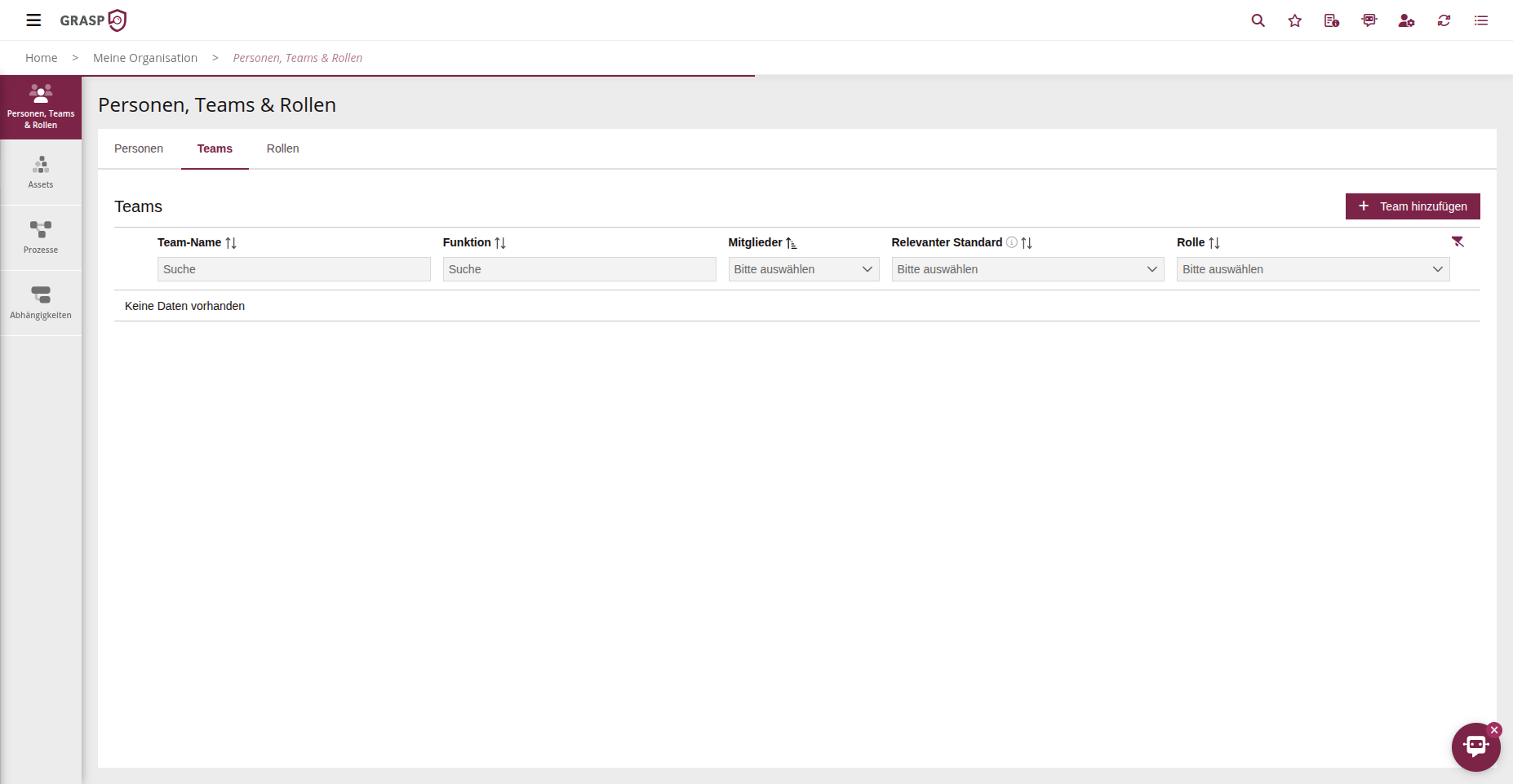
- Open the Teams & Roles area and switch to the Teams tab.
- Click on + Add Team.
- Enter a team name and a function for the team.
- In the table this field is labelled "Function"
- In the form it is labelled "Description"
- In the Relevant Standard field, select which modules this team should be used in (e.g. IT-Grundschutz and NIS2).
- In the table: "Relevant Standard"
- In the form: "Subject-Matter Relevance"
- Optionally, you can already assign Members (persons) to the team.
- Save the team.
Note on field labels
The table uses "Function" and "Relevant Standard", while the form shows "Description" and "Subject-Matter Relevance". Both terms refer to the same fields.
Creating and Assigning Roles🔗
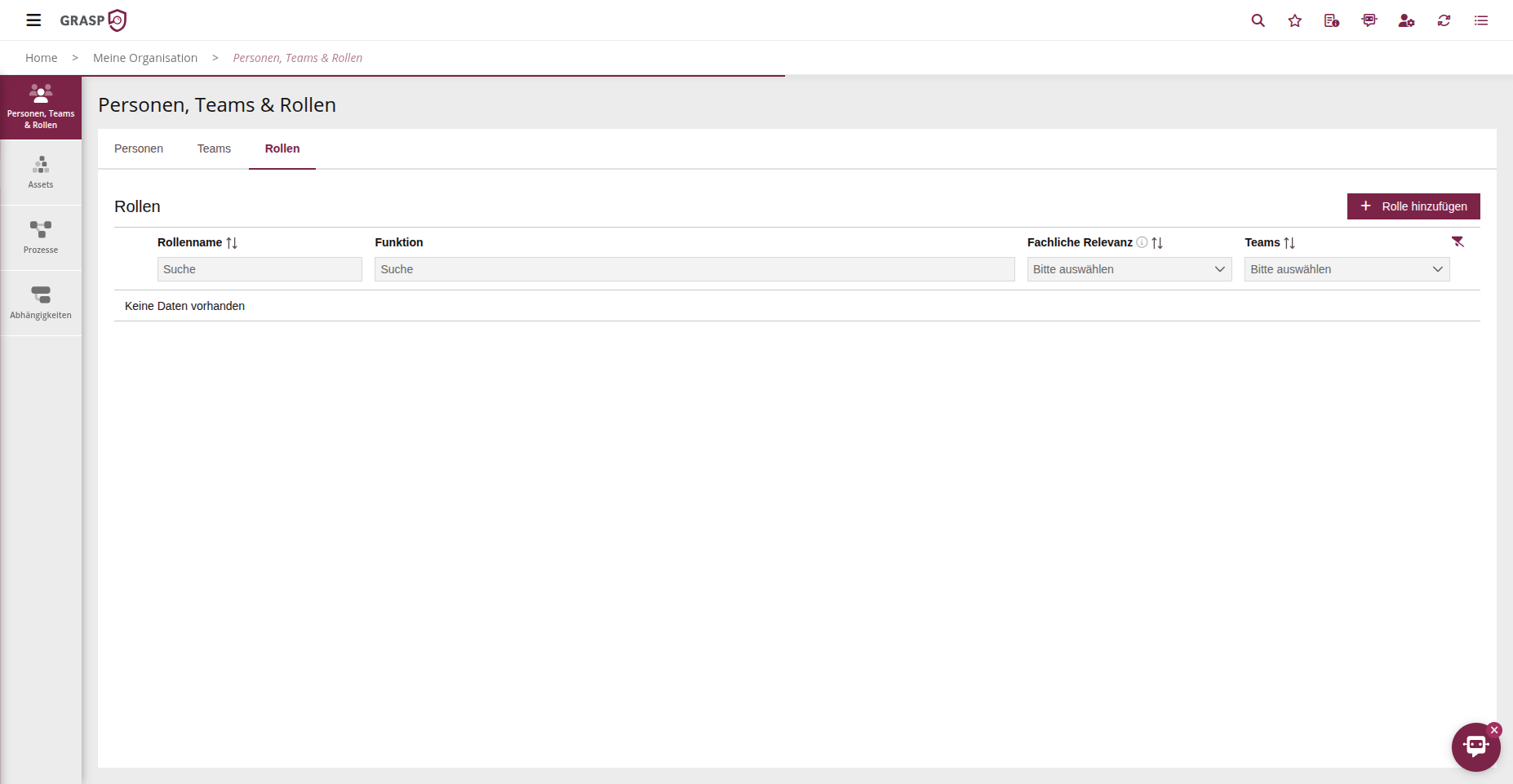
- Switch to the Roles tab.
- Click on + Add Role to create a new role.
- Enter a role name and a function (description of the role).
- In the Subject-Matter Relevance field, select which modules this role should be used in.
- Optionally, you can assign the role directly to teams.
- Save the role.
Roles can later be used in risks, measures, or audits to define responsibilities more granularly.
Notes🔗
- By combining person, team, and role you can map responsibilities at a very granular level.
- When introducing new modules, it is often sufficient to extend the subject-matter relevance of existing teams/roles rather than creating everything from scratch.
Views🔗
Teams Overview🔗
Roles Overview🔗